

Free Template
WIP Schedule Template for Concrete Contractors
See which jobs are over- or underbilled and which are losing margin. Start with your 3 biggest jobs, ballpark numbers, about 5 minutes.
What you get
- Over/(under) billing for every open job, flagged when it passes the threshold you set.
- A quick version you can fill in from memory: contract, billed to date and your gut feel for % complete.
- A cost-to-cost version (the method sureties expect) when you have estimated cost and cost to date.
- Margin fade warnings for jobs whose cost has already passed the estimate.
- A one-page summary with totals, your most underbilled jobs and charts.
Excel file. Also opens in Google Sheets and Numbers. Your numbers stay in the file; it doesn't connect to anything.
Get the template
Free. The download starts as soon as you submit.
Your download is starting.
If it didn't, download the template here.
Start on the Start Here tab, then fill in your 3 biggest jobs on the WIP Schedule tab.
What it looks like
Example data, not a real contractor.

Scroll sideways to see every column.
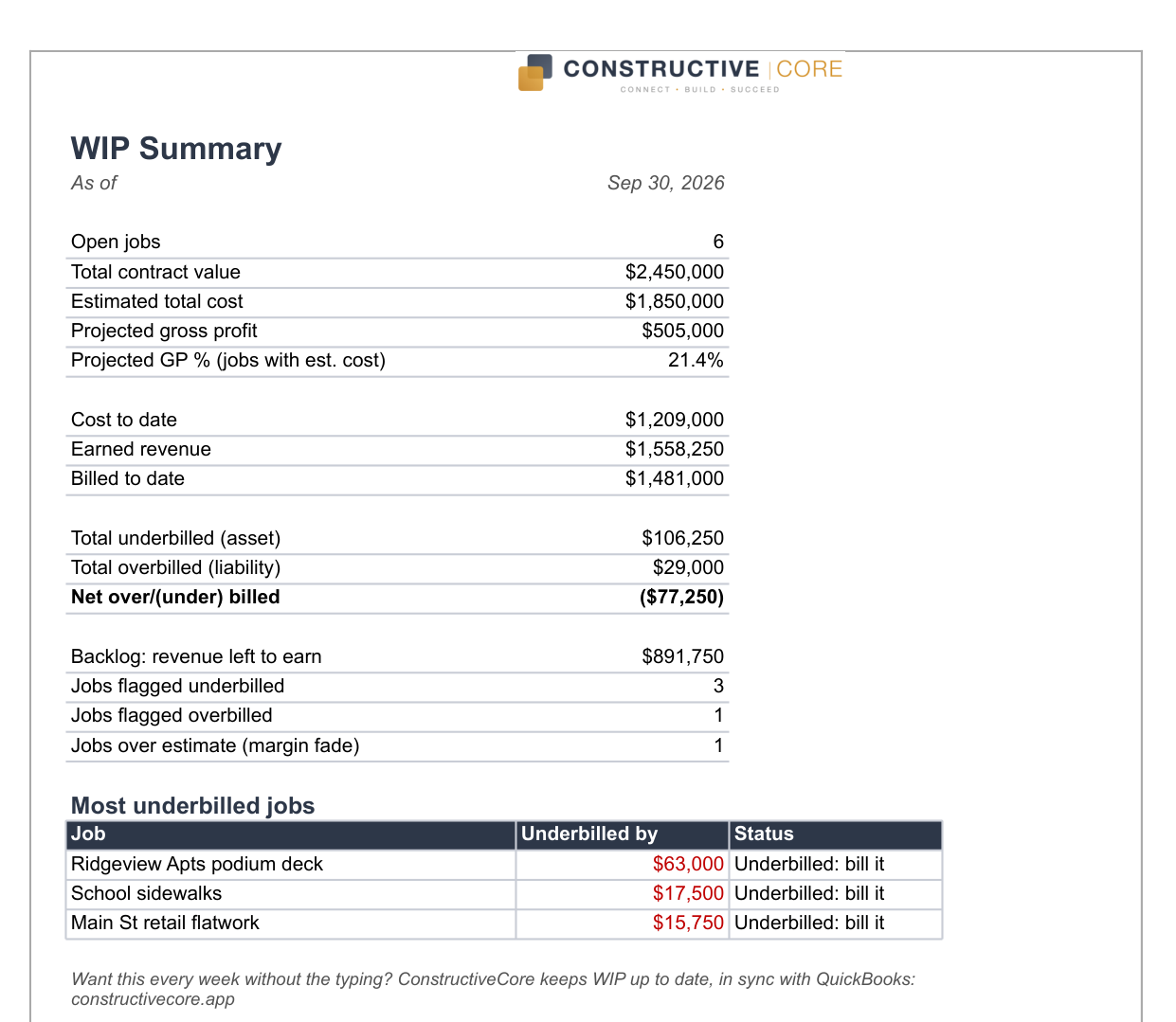
What a WIP schedule tells you
A work-in-progress (WIP) schedule answers one question for every open job: have you billed more or less than the work you've actually done?
- Underbilled means you've done more work than you've billed. It's money you've earned but not collected, or a sign the job is running over on cost.
- Overbilled means you've billed ahead of the work. Good for cash now, but it's a liability: you still owe that work.
Bonding companies and lenders read your WIP to judge whether your reported profit is real. Big underbillings look like hidden losses. Big overbillings are cash you owe back in future work.
How the template calculates it
- % complete = cost to date ÷ estimated total cost (the cost-to-cost method). If you don't have cost data yet, it uses your own % complete.
- Earned revenue = % complete × contract amount (including approved change orders).
- Over/(under) billed = billed to date − earned revenue. Positive is overbilled, negative is underbilled.
Heads up: cost to date is the hard part
QuickBooks can report cost by job, but only if every bill, card charge and payroll hour was tagged to the job when it was entered. In most contractors' books, a lot of it isn't, so costs pile up with no job attached.
A quick check: run the Job Profitability Summary (QuickBooks Desktop) or Profit and Loss by Customer (QuickBooks Online) and compare its total cost to the total cost on your P&L. The gap is cost that isn't on any job, and every job looks more profitable than it really is.
If you get stuck there, that's normal, and it's the most useful thing the template can show you. ConstructiveCore fixes it at the source: purchase orders are issued against a job, and incoming vendor invoices are matched to the right bill by PO number, so every cost lands on the right job.
Want this every week without the typing?
ConstructiveCore keeps job costs, billing and WIP up to date for every job, alongside QuickBooks. See it with example data in 15 minutes.